Your monitor. Under your control.
MoyMote is a private local bridge between your phone, your Windows PC and your monitor. Change brightness, blue light and HDR without reaching for the monitor's buttons.

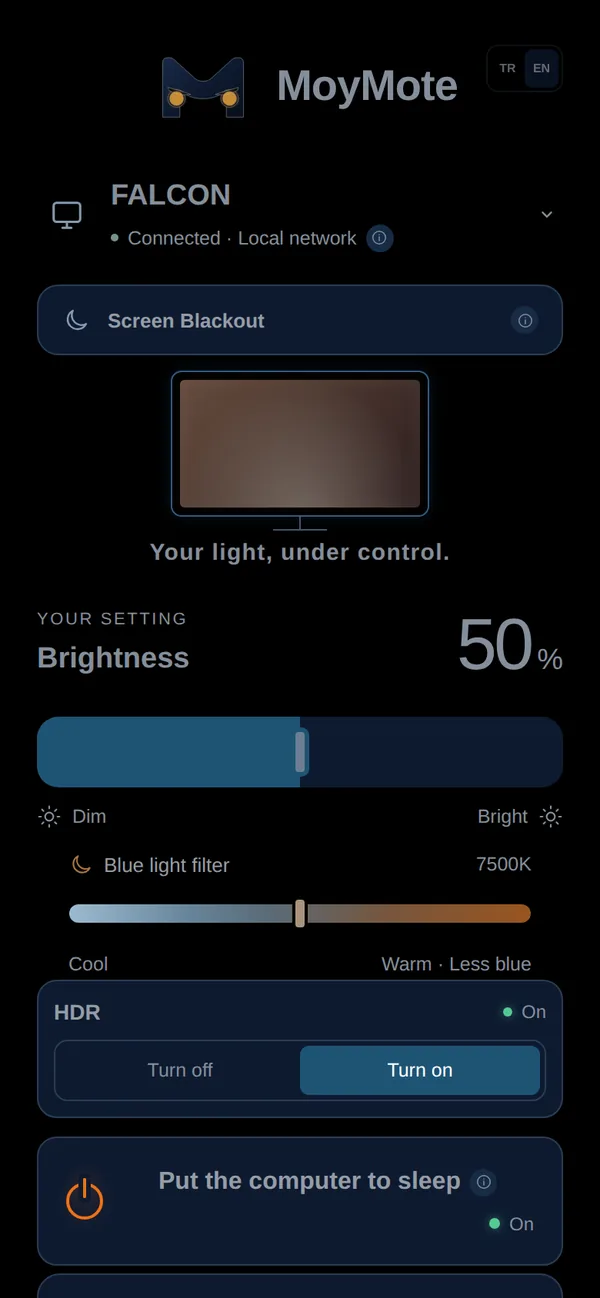
Interactive preview. Drag across the phone.
Try it free for 7 days.
No card, no subscription, no sign-up. Download it and try it on your own monitors; a single screen or a multi-monitor setup. If you like it, buy it from Microsoft Store in one click. When the trial ends, MoyMote locks until you buy; your settings are kept. You're never charged automatically; you only pay if you choose Buy.
On Microsoft Store for Windows 10 and 11.
Real screenshots, not mockups.
Three simple ideas, captured from the current MoyMote app on a phone, in dark appearance.
-
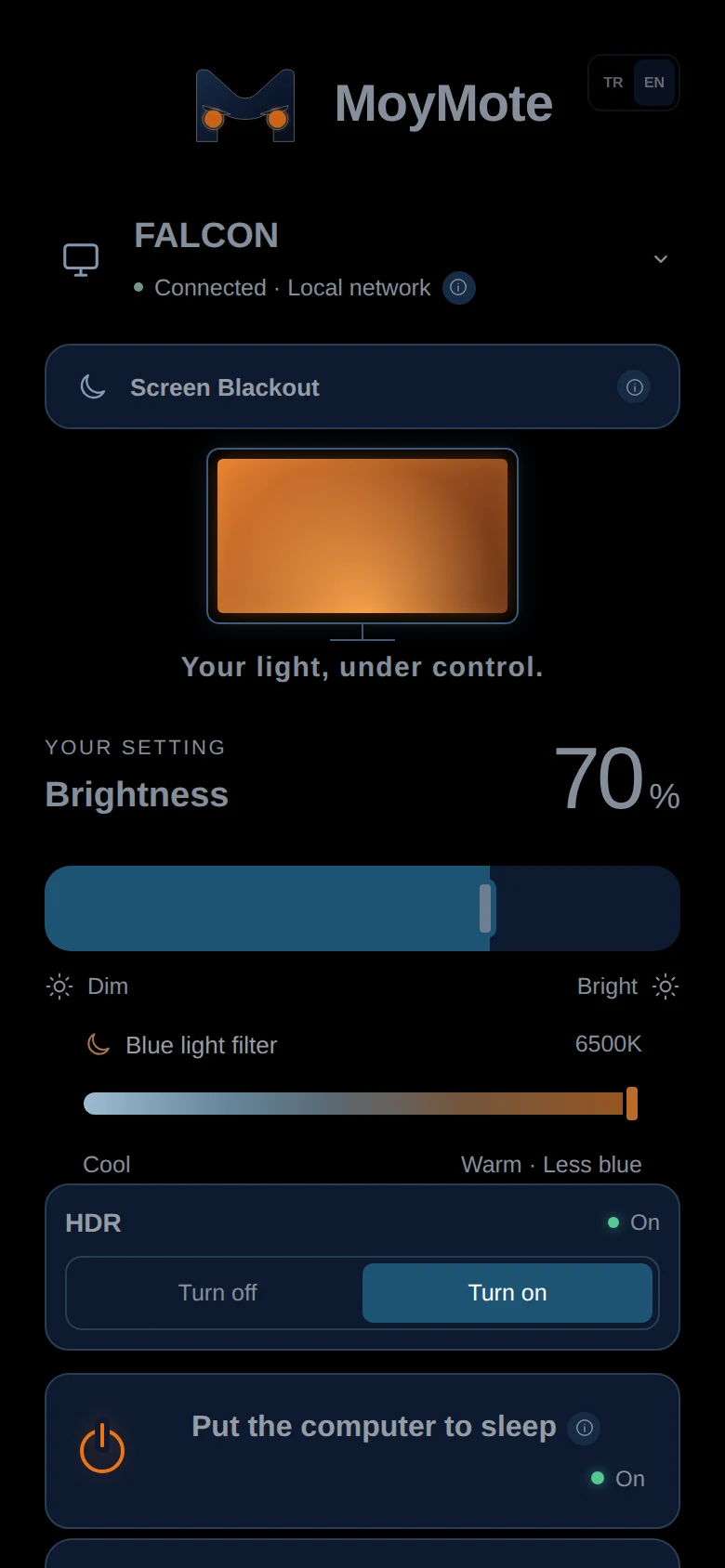
Control from anywhere in the room
Your phone becomes a private local remote for the monitor — no getting up to reach the buttons.
-
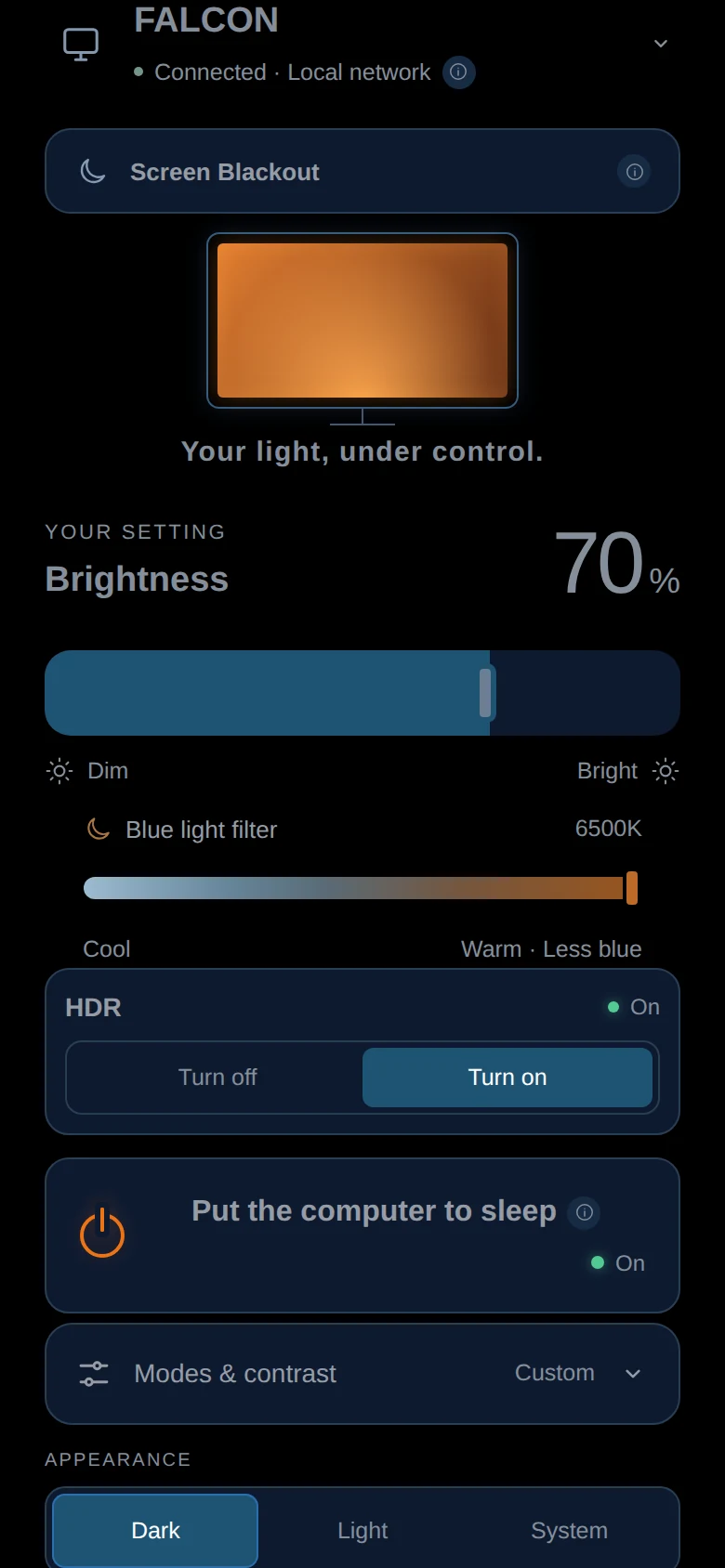
Comfort for every hour
Balance brightness and blue light without opening the monitor's own on-screen menu.
-
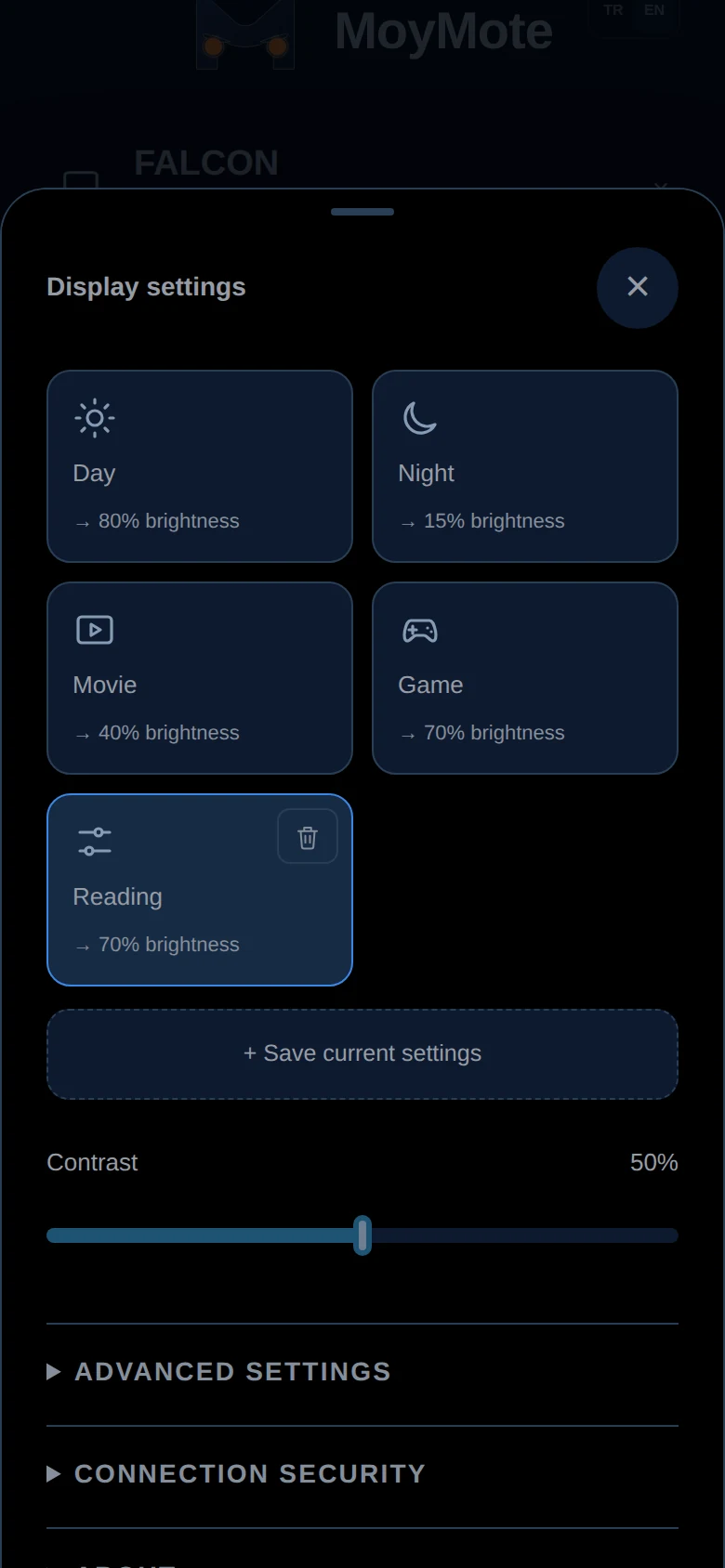
Your settings, remembered
Save a mode for work, movies or night use, and switch between them in one tap.
Real MoyMote screenshots, phone frame added for presentation only
Your monitor's everyday controls. Without the buttons.
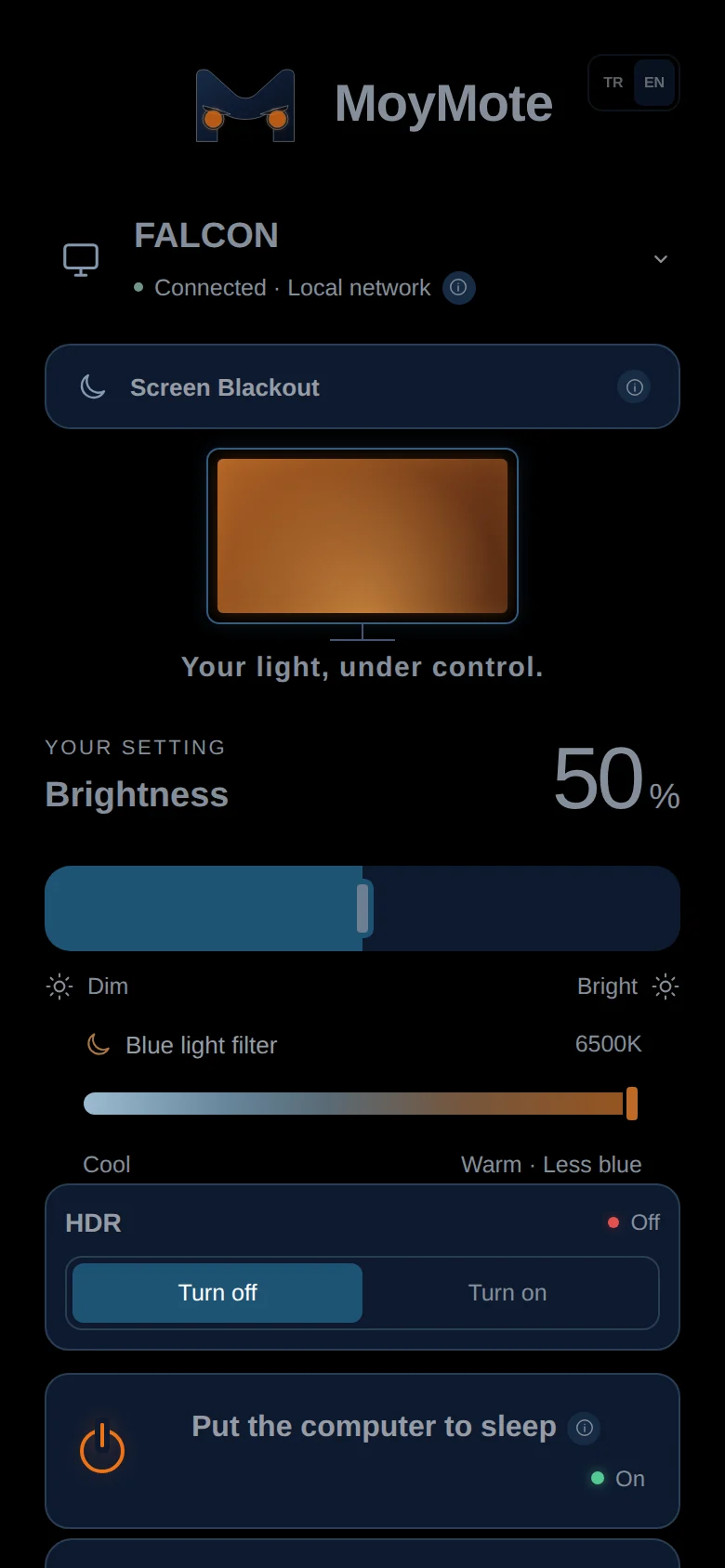
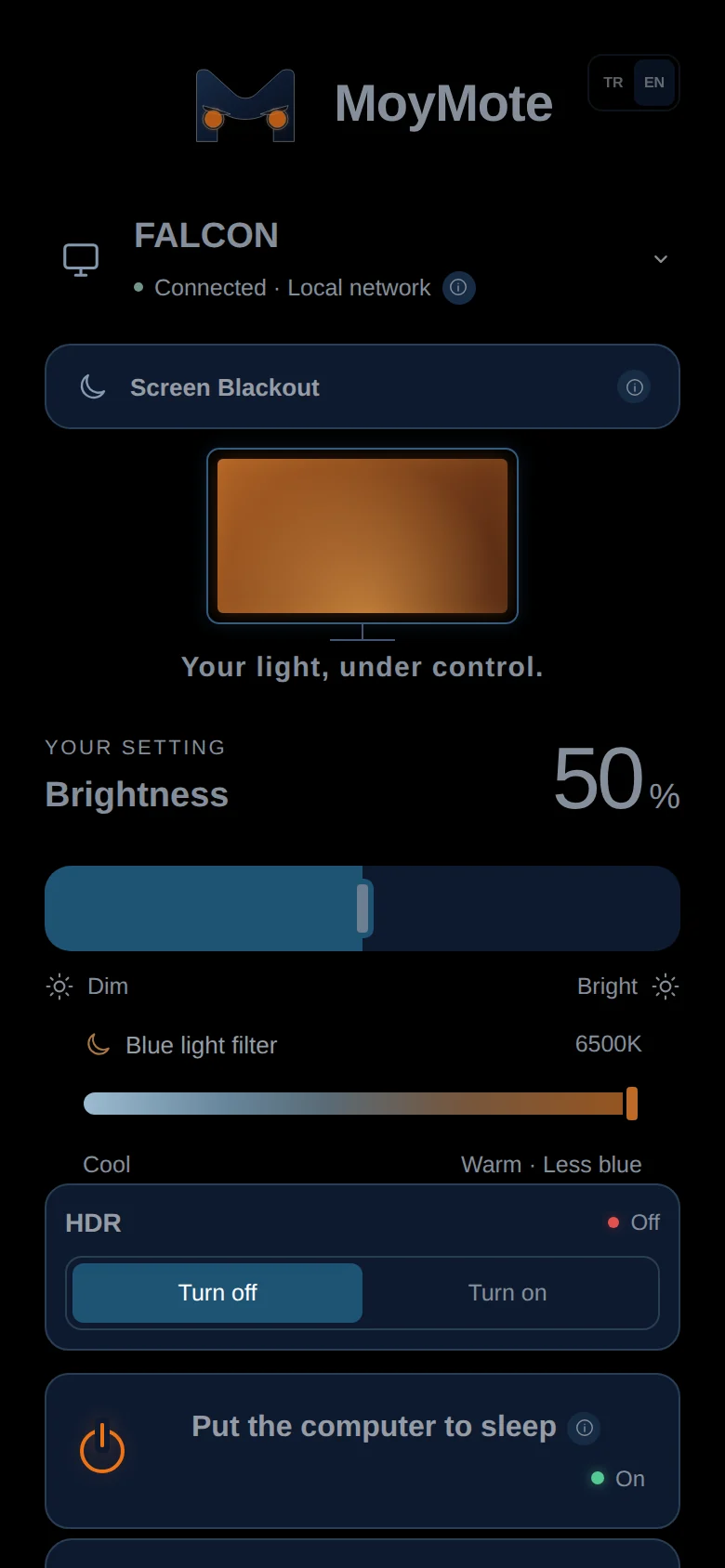
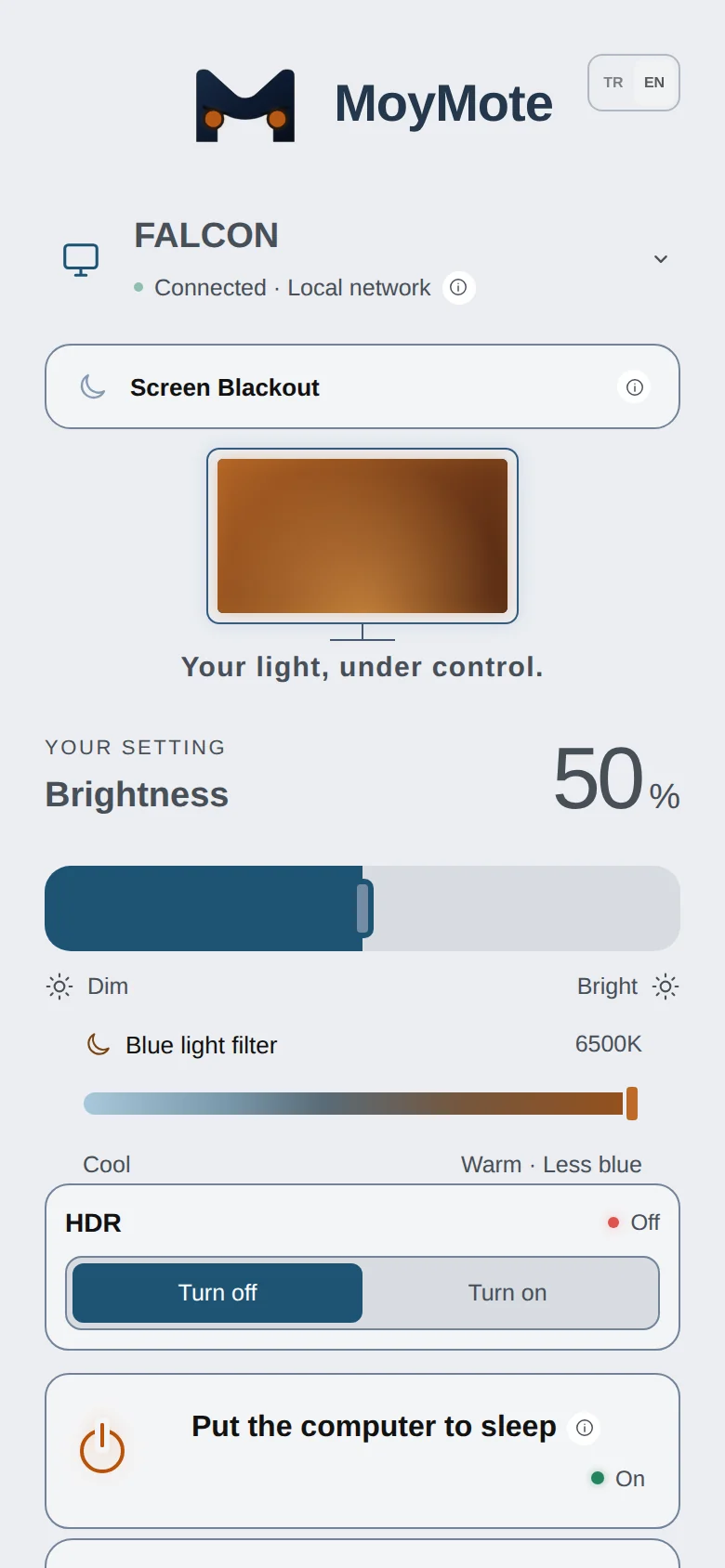
The panel on your phone is the same one you get on the PC. It shows only the controls your monitor actually supports.
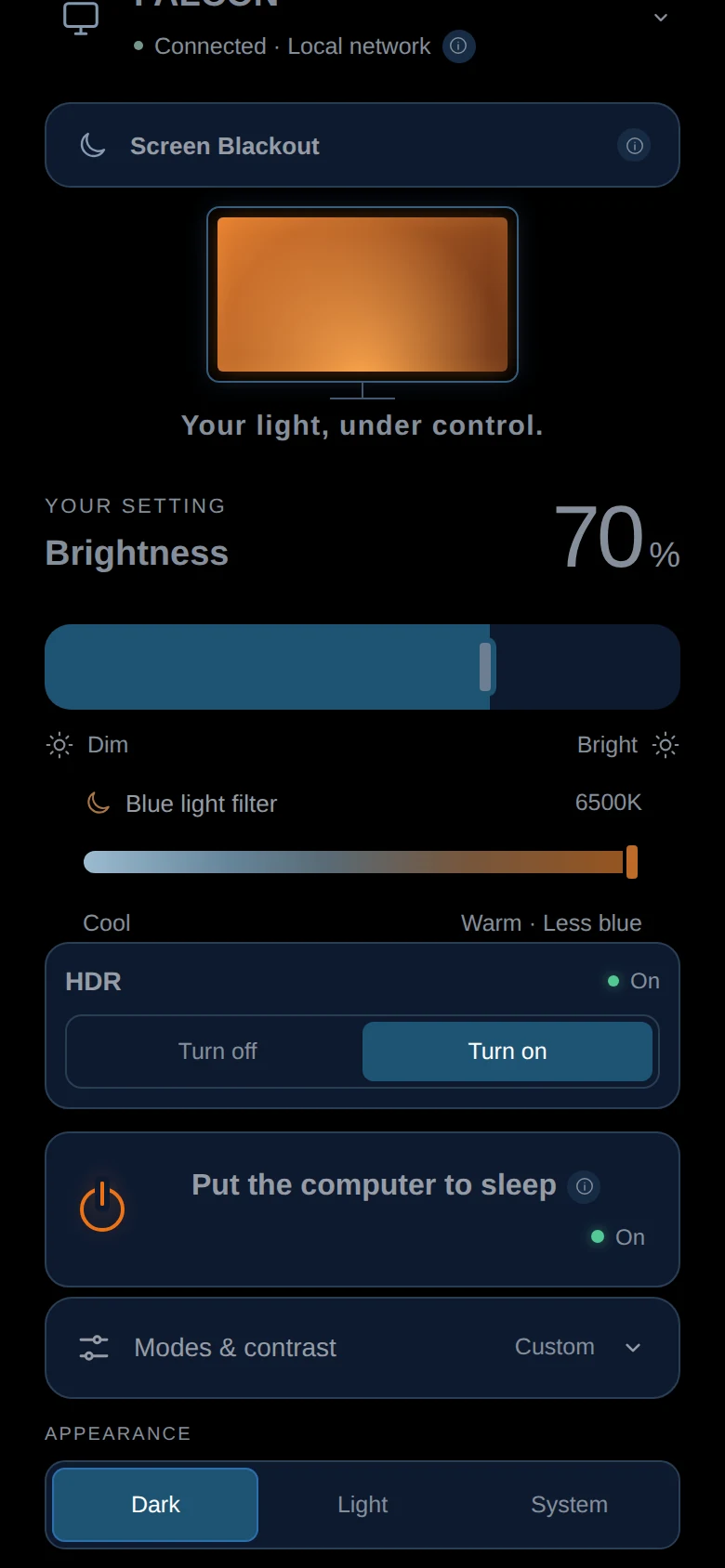
Brightness
One smooth slider, from barely-there to full.
Blue light filter
Steps through your monitor's own colour presets, from cool to warm.
Screen Blackout
Blacks out the picture without switching the monitor off. The same button brings it back.
HDR
Turns Windows HDR on or off for the monitor.
Needs an HDR-capable display with HDR available in Windows.
Sleep and shut down
Put the PC to sleep or shut it down from where you're sitting. Hold to confirm, so nothing happens by accident.
Modes and contrast
Day, Night, Movie and Game to start with, plus up to four modes of your own. Contrast is one slider away.
Volume and mute
For monitors with built-in speakers that accept the command.
Dark or light
The panel follows your phone's appearance, or you pick one.
Inside the app, screen by screen.
Every image below is captured from the current MoyMote app in dark appearance.
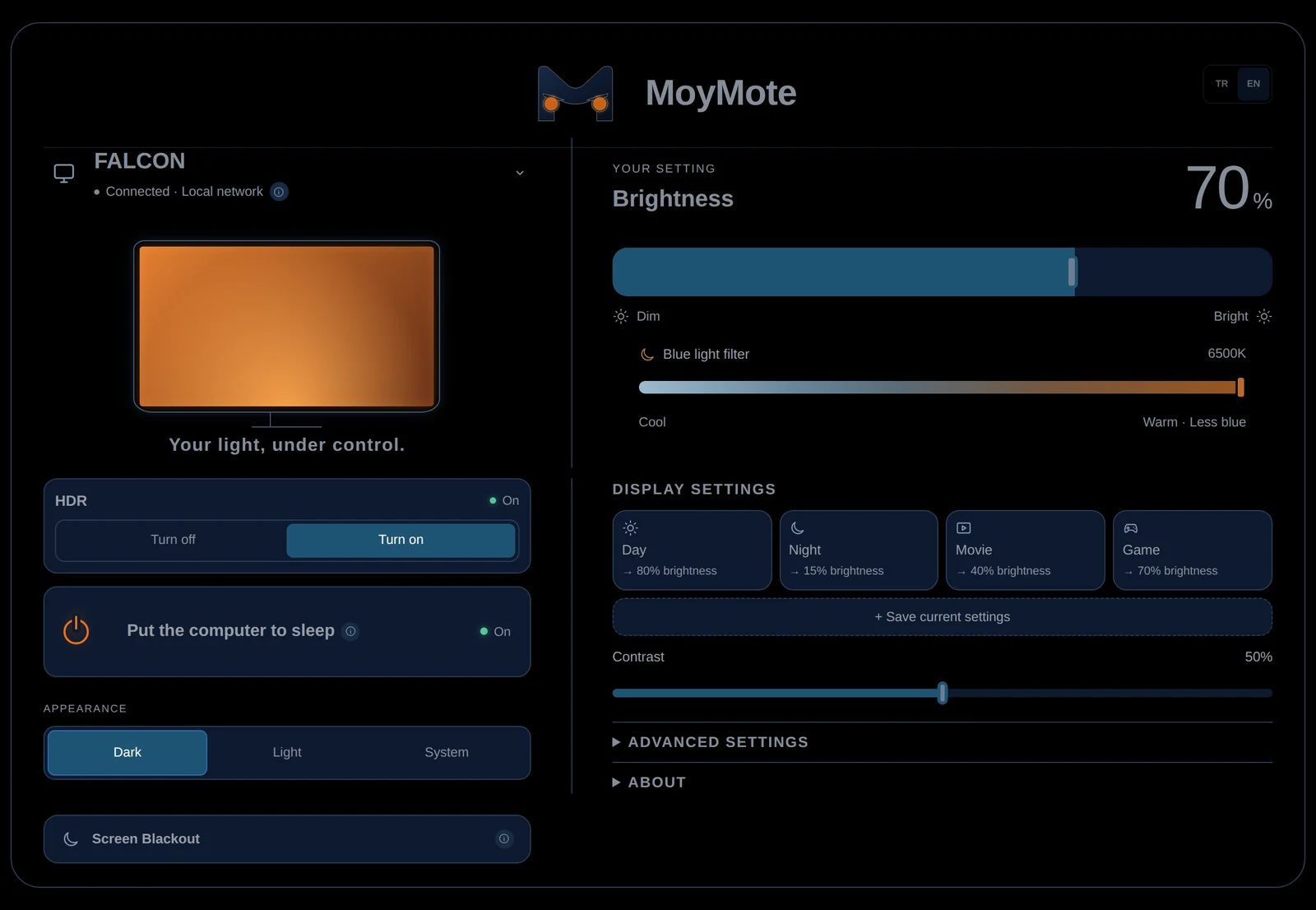
Brightness and blue light, without the monitor menu
Drag a slider on the PC instead of hunting through the monitor's own on-screen buttons.
- Brightness control
- Blue light filter, from cool to warm
- HDR status and switching
- Contrast control
The same panel, from your phone
MoyMote's phone panel mirrors the desktop app on the local network — pick up the phone and the same controls are there.
- Responsive phone and desktop controls
- Saved modes, one tap to switch
- Speaker volume and mute, when the monitor supports it
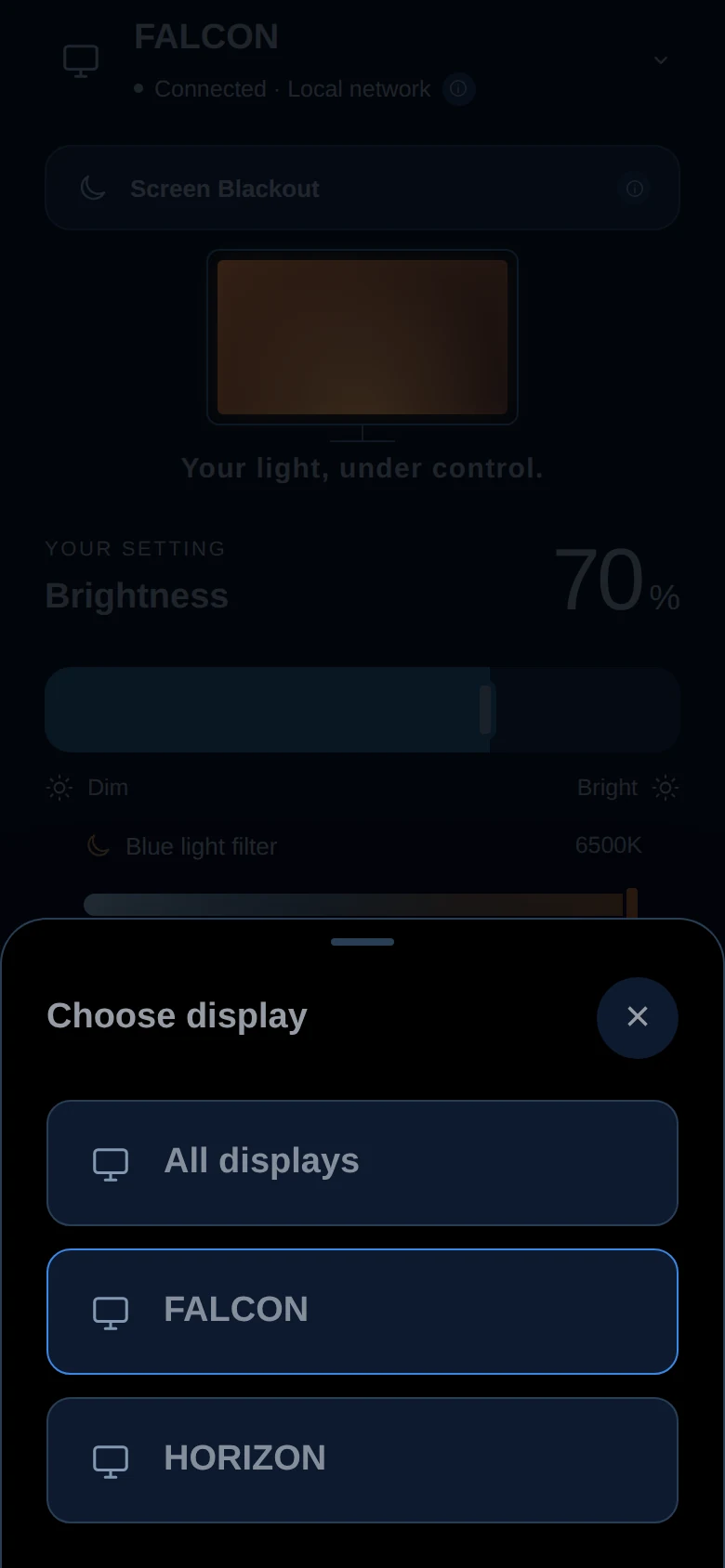
More than one monitor
Multiple monitors are supported. Pick one display, or control all of them together, from the display picker on your phone or PC.
- Choose a single display or all displays
- Each display shows the controls its own DDC/CI support allows
- Try it on your own setup during the 7-day free trial; issues you report are fixed in updates
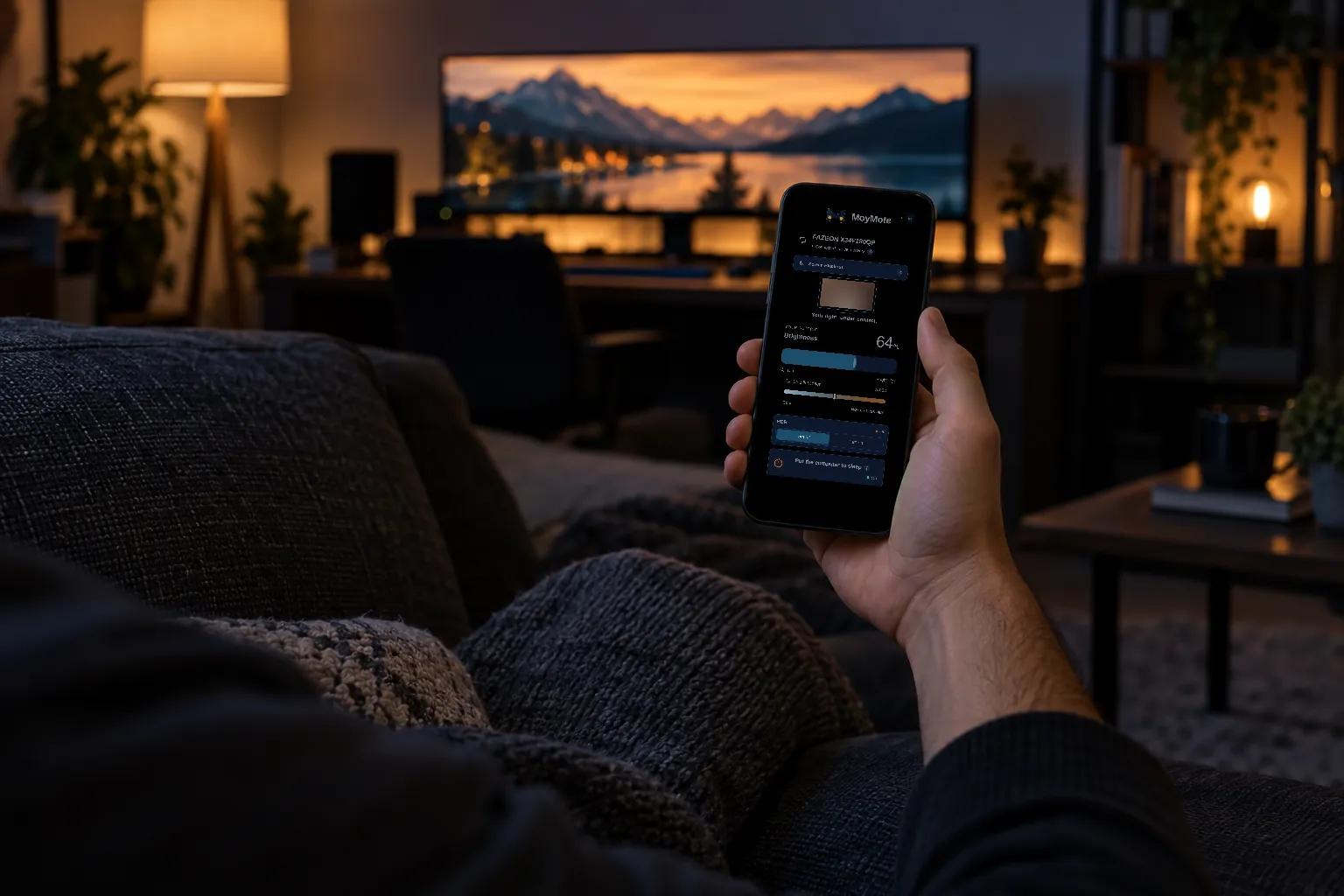
Your phone is the remote.
Scan a QR code once and your phone's browser becomes the MoyMote panel. There is nothing to install on the phone and no account to create. The phone talks to your PC over your own local network. Optional remote access runs through your own Tailscale, and is off by default.
- Works from the couch, the bed or the other side of the room
- Add it to your home screen for one-tap access
- See and remove paired phones whenever you like
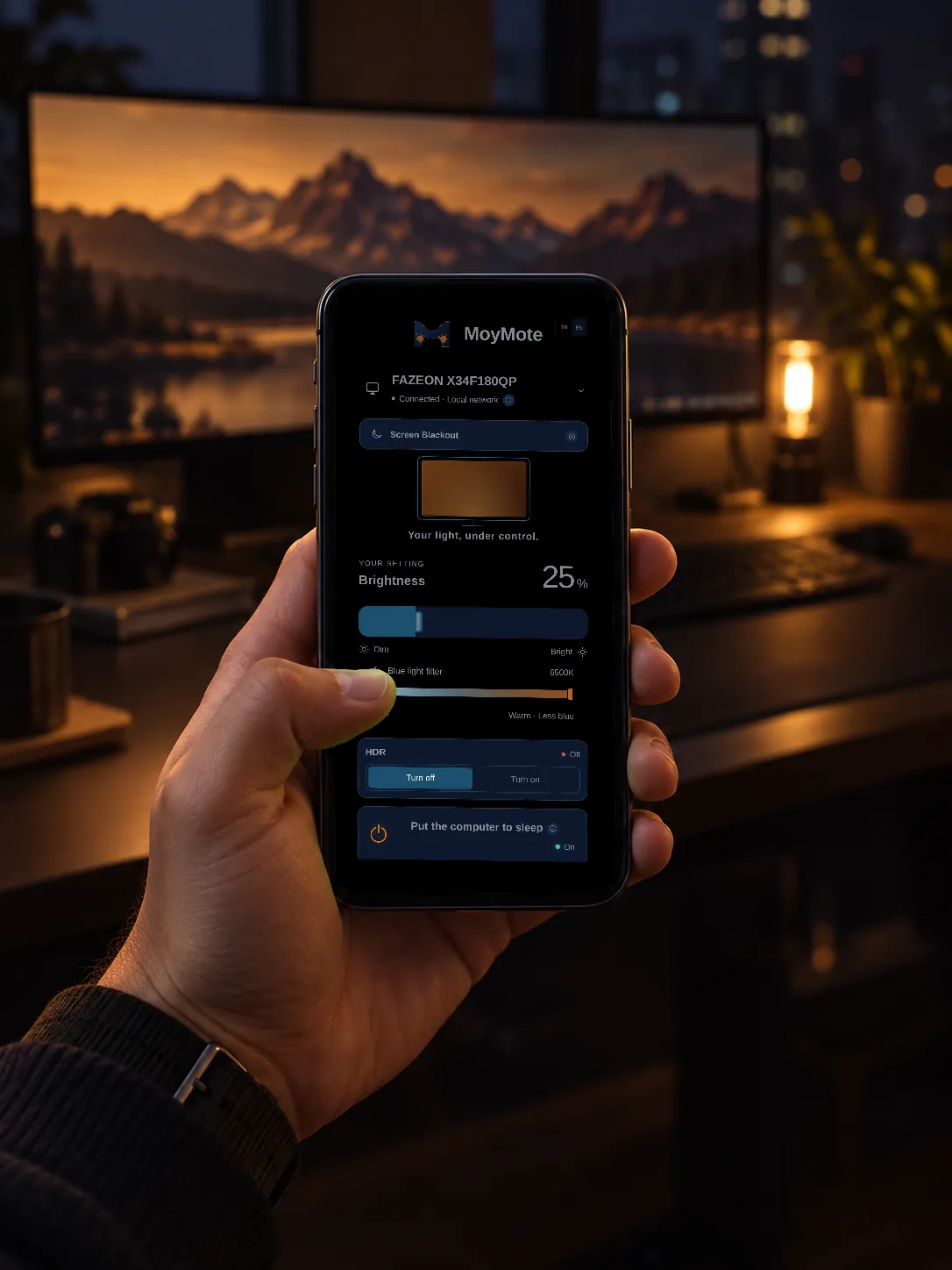
Made for late nights.
At midnight the monitor is the brightest thing in the room. Bring it down to a glow and warm up the picture without leaving the sofa, then save it as a mode and call it back tomorrow with one tap.
- Brightness and warmth in one place
- Screen Blackout for when you just want the dark
- Saved modes remember the whole look
Why MoyMote?
A tray slider is fine while you sit at the desk. MoyMote is built for the moments you aren't at the desk.
- Your phone is the remote.No app to install on the phone. Scan once and it's paired.
- More than brightness.Blackout, HDR, sleep and shut down, next to brightness and warmth.
- Modes you switch in one tap.Movie night, late reading or gaming, each saved exactly how you like it.
- Local and private.No MoyMote account, no cloud, no tracking. Your settings stay on your own devices.
Set up in about a minute.
Install MoyMote on Windows
It lives in the tray and talks to your monitor over DDC/CI, the control channel most external monitors carry over the video cable.
Scan the QR code with your phone
Your phone opens the panel in its browser and pairs with your PC over your local network.
Control your monitor
From the PC or from your phone. Changes are sent to the monitor over DDC/CI.
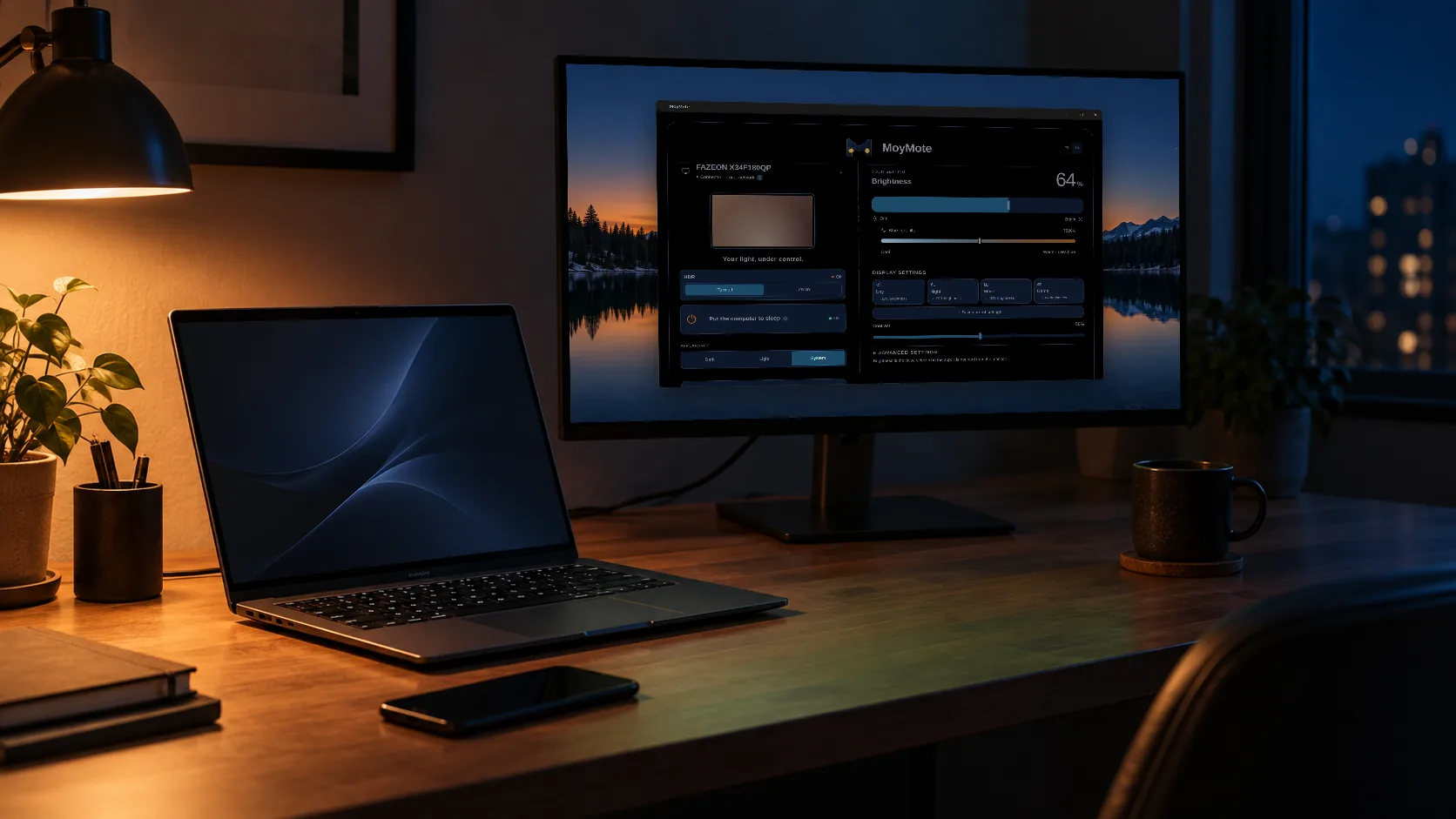
Connecting is this easy.
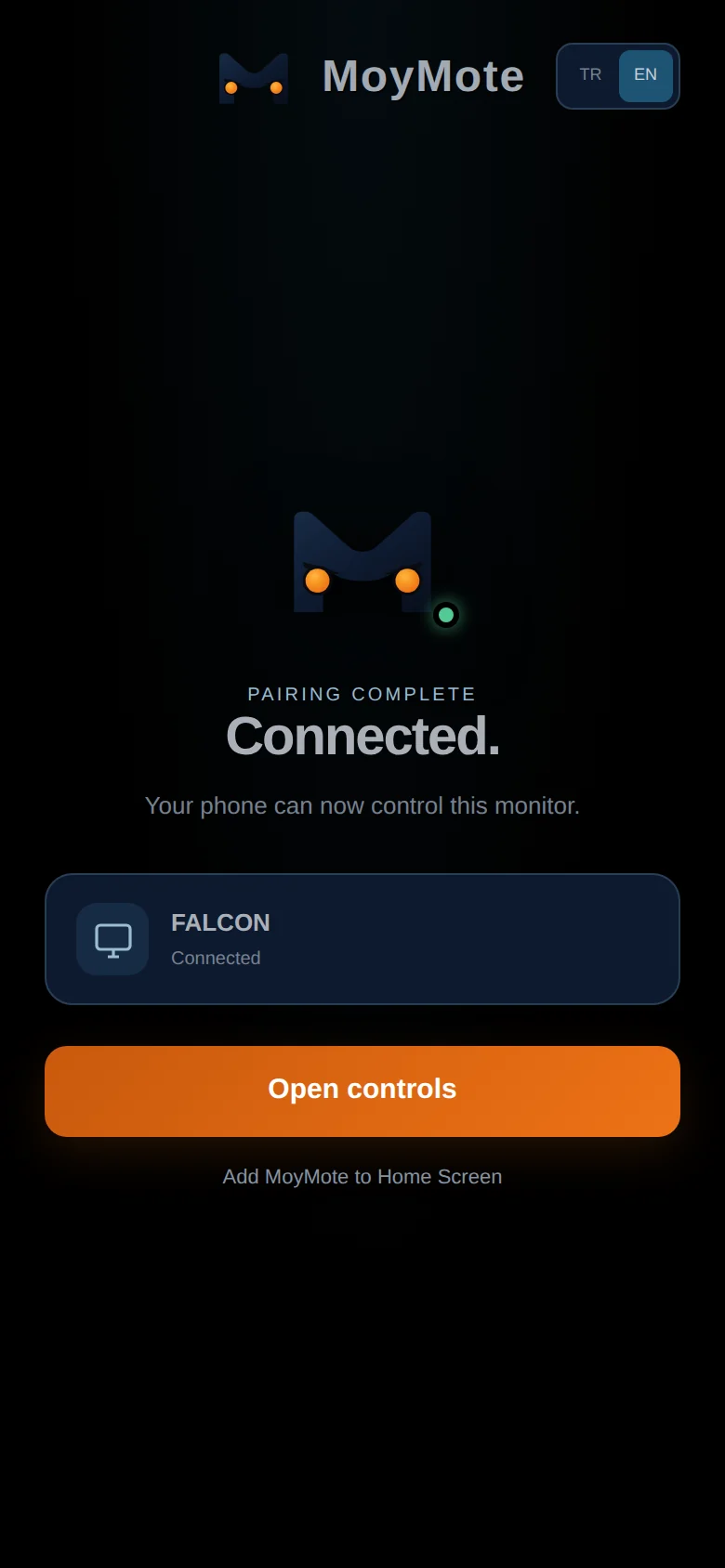
Real MoyMote screens, from the PC to the phone. A pairing code works once and expires in about two minutes.
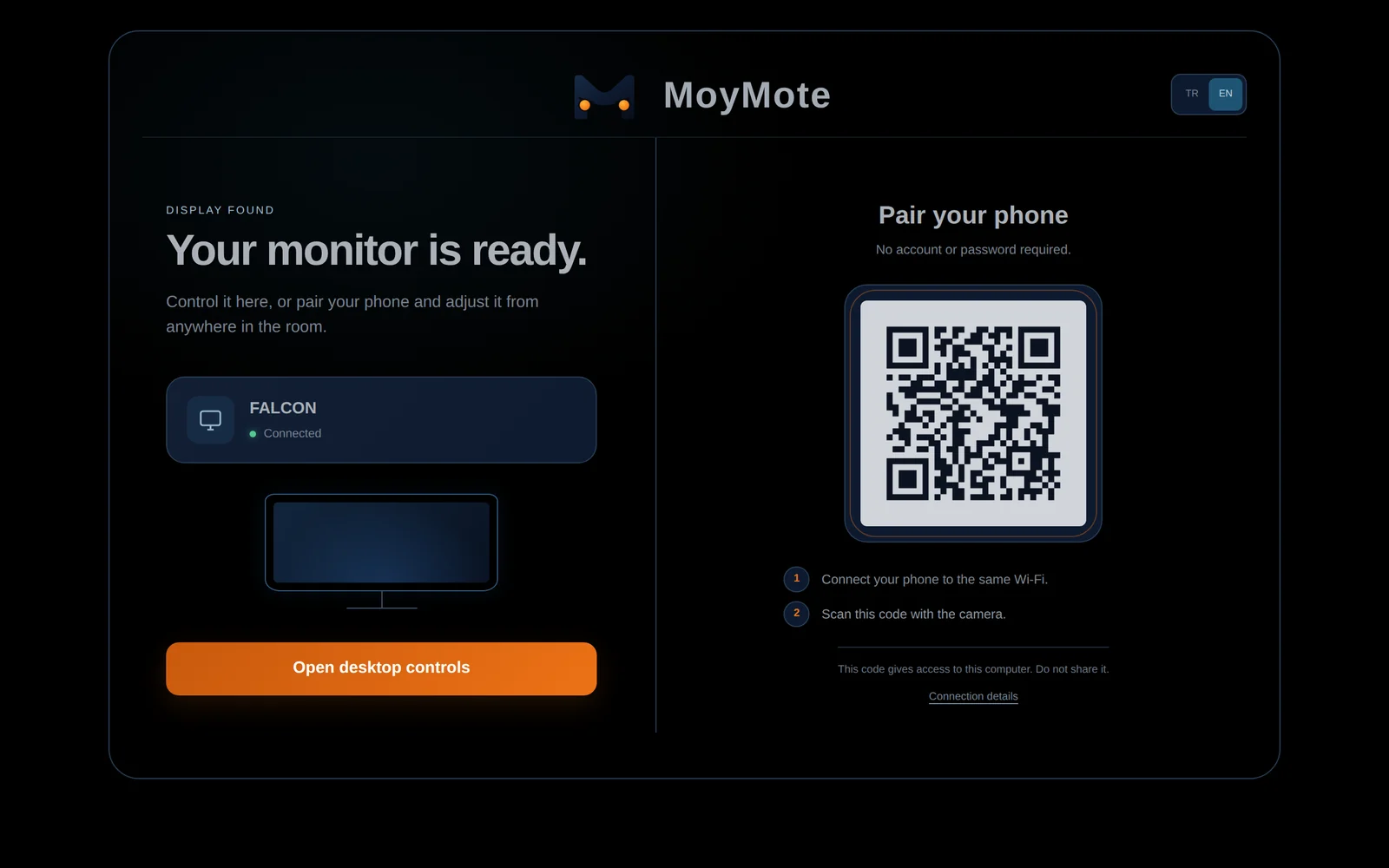
1Show the code on your PC
Choose “Show QR code” from the MoyMote tray menu.
2Scan it with your phone
Point the phone's camera at the code. The panel opens in the browser and pairs with your PC.
3Connected
The same controls, now on your phone. Nothing to install on the phone.
Real MoyMote screenshots. The code in this picture opens moymote.com; your own pairing code only works on your network.
Check your setup before you buy.
- Windows 10 or 11MoyMote runs on the PC the monitor is connected to.
- An external monitor with DDC/CIUsually on by default. If not, you'll find it in the monitor's own menu.
- HDMI or DisplayPortSome USB-C docks and adapters don't pass DDC/CI through.
- The same local networkYour phone and PC on the same network. Away from home? See optional remote access.
Every monitor exposes a different set of controls: some offer only brightness, others add colour presets, contrast or volume. MoyMote shows what yours supports and hides the rest. We've tested it on a Fazeon X34F180QP, and we'd rather you try it on your own monitor than trust a long compatibility list, which is what the 7-day free trial is for. Built-in laptop screens don't support DDC/CI, so MoyMote can only black them out.
Local by design.
Dark or light, your call.
By default MoyMote follows your phone's appearance, so it stays dark at night when your phone does. Prefer one look? Tap Dark or Light under Appearance, one tap.
Pay once. Keep it.
One-time purchase. No subscription.
Get it from Microsoft StoreTry it free for 7 days before you pay; you are never charged automatically when the trial ends.
- One-time purchase on Microsoft Store
- 7-day free trial before you pay
- Desktop app and phone panel included
- No subscription, no ads, no license codes
Questions, answered.
What is DDC/CI?
DDC/CI is a standard that lets a computer send commands such as brightness or contrast to an external monitor over the video cable. MoyMote uses it to control your monitor from Windows and from your phone.
Do I need to install an app on my phone?
No. You scan the QR code shown by MoyMote on your PC and the panel opens in your phone's browser. You can add it to your home screen if you like.
Does it work with a laptop's built-in screen?
Built-in laptop screens don't support DDC/CI, so MoyMote can't change their brightness. It can still black them out. Windows' own brightness keys keep working as usual.
What if my monitor doesn't support a control?
MoyMote shows only what your monitor reports it can do. If a control is missing, your monitor or its connection doesn't expose it. That's why there's a 7-day free trial: try it on your own setup first.
Does it matter if I use HDMI or DisplayPort?
Both carry DDC/CI on monitors that support it. Some USB-C docks, hubs and adapters don't pass it through, so a direct cable is the safest choice.
Can I wake the PC from my phone?
Not reliably. Many modern PCs go into a deep sleep in which the network is off, so wake it with the keyboard, mouse or power button.
Is any of my data collected?
No. MoyMote has no account, no telemetry and no crash reports, and nothing is sent to us. The app contacts Microsoft Store only to check your license. The privacy policy covers the app and this website in full.
Can I control my monitor away from home?
Yes, if you install Tailscale on your PC and phone, sign in with the same account and turn on optional remote access in MoyMote. Read the setup guide and security tradeoffs.
Does it support multiple monitors?
Yes. Choose one display or all displays from the display picker. Controls depend on each monitor's DDC/CI support, so try it on your own setup during the 7-day free trial; issues you report are fixed in updates.
Will I be charged when the trial ends?
No. When the trial ends, MoyMote locks until you buy; your settings are kept. You're never charged automatically; you only pay if you choose Buy.
Do updates cost extra?
One-time purchase, no subscription. Updates arrive automatically through the Store at no cost. Features you bought will never become paid.
What if I want a refund?
Use the 7-day free trial to test MoyMote on your setup before you pay. Purchases through Microsoft Store follow Microsoft Store's refund policy.
How do I get help?
Write to [email protected] or use the form on the support page.
Your monitor settings, right at hand.
Not in the buttons behind the monitor, but on your phone.
Get it from Microsoft Store